MagnetSim
Thousands of needles. A world of patterns.
Each needle responds to its neighbors. Together, they form shifting patterns you can disturb, freeze, and explore.
Your settings stay in this browser. Leaving and reopening starts a new running field.
What am I looking at?
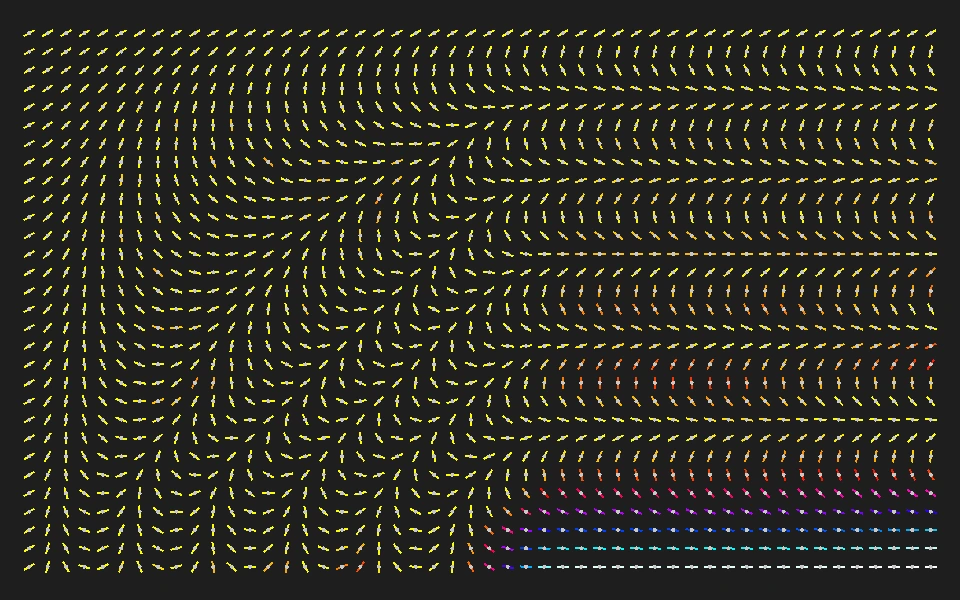
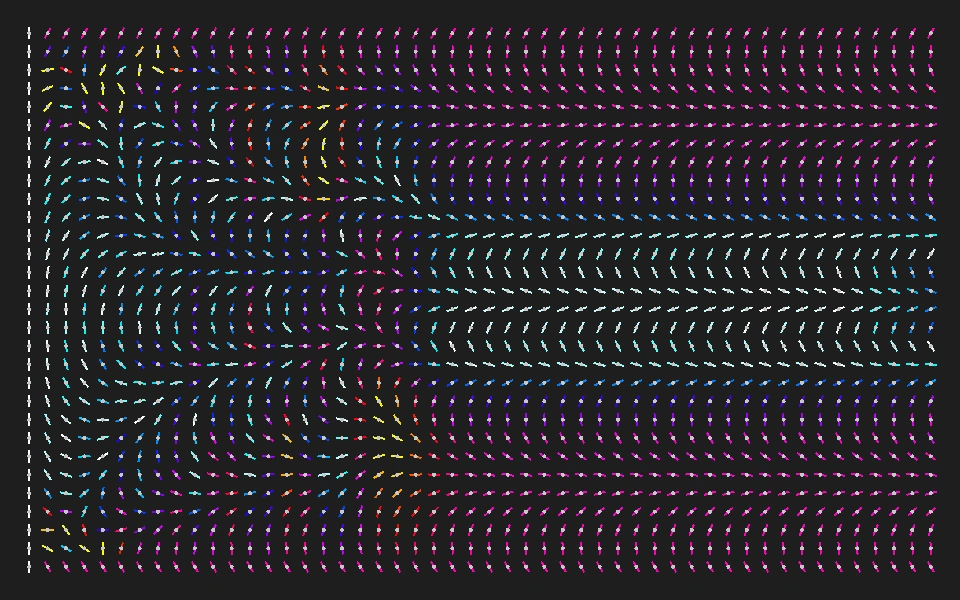
MagnetSim is an interactive magnetic needle simulation: a grid of little lines turning around fixed points, like tiny compass needles. Their positions stay the same, but their directions change as they respond to nearby needles. Individual movements grow into larger patterns.
Each needle interacts with up to eight neighbors, including diagonals. Nearby needles tend toward alignment. That local influence spreads across the field, creating regions that point in similar directions, bends between them, and motion that travels away from a disturbance.
Colors show speed, not magnetic polarity or temperature. Stationary needles are white by default; moving needles progress through cyan, blue, magenta, red, and yellow as speed increases. Configured borders can have a separate color.
This is a simplified model for exploration, not a quantitatively accurate simulation of real magnetic materials. Watch how a few local rules produce collective behavior, then change something and see what follows.
Try an experiment.
Disturb the angles
Press Disorder to nudge the needle directions. Watch which areas move together. A second press soon afterward makes a larger disturbance. Pause when something catches your eye, then use Step to examine one update.
Drive the borders
In Configuration → Initialization rules, choose an example with rotating borders. Press Restart with initialization to apply it. The edges keep supplying motion. Change one rule and compare the patterns.
Freeze the borders
Press Freeze borders—Freeze Brdr on mobile. Rotating edges hold their current angles while the interior continues. Unfreeze to restore their speeds. Does the field settle, or does motion persist?
How does it work?
Each simulation step updates a needle's rotation using the differences between its direction and its neighbors'. Coupling strength and distance control their influence. These interactions change rotational speed, and the needle turns. The calculation stays local even when patterns span the grid.
Friction slows rotation on each step, and a minimum-speed threshold stops tiny movements. Rotating borders keep their assigned speeds until you change their rules or temporarily freeze them. They can keep an otherwise quiet field in motion.
Configuration controls grid size, spacing, coupling, friction, and appearance. Initialization rules set starting angles, speeds, and frozen or rotating borders. Six examples provide starting points; changes apply after restarting. The initialization guide explains how to combine rules.
Target FPS sets the drawing rate; Steps / frame sets how many simulation updates happen between drawings. Increase it to advance faster, or pause and Step to look closely at individual updates.
The simulation runs locally in your browser, with mouse and keyboard controls on desktop and compact touch controls on mobile. Save settings and presets in this browser or export them as files. These saves contain configuration, not the moving field. See the full Manual for controls and settings.
Your turn.
Start with a small change. Watch what follows. Then try something different.
Start this!